Getting started
ClipChat is a client-side mod that adds a clipboard manager to the Minecraft chat screen. Text copied in-game appears in the panel; click an entry to insert it at the chat cursor. The mod does not need to be installed on the server.
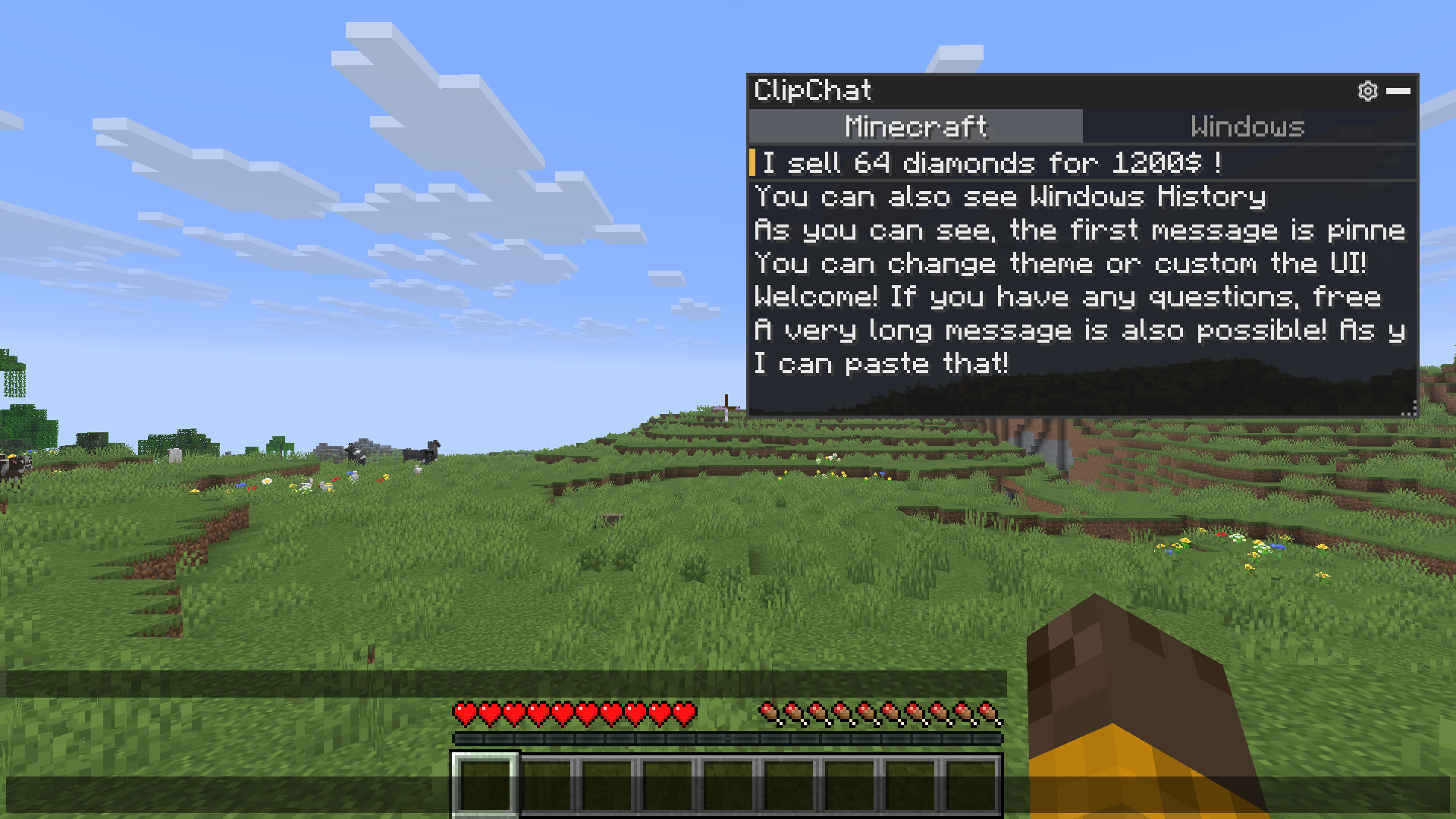
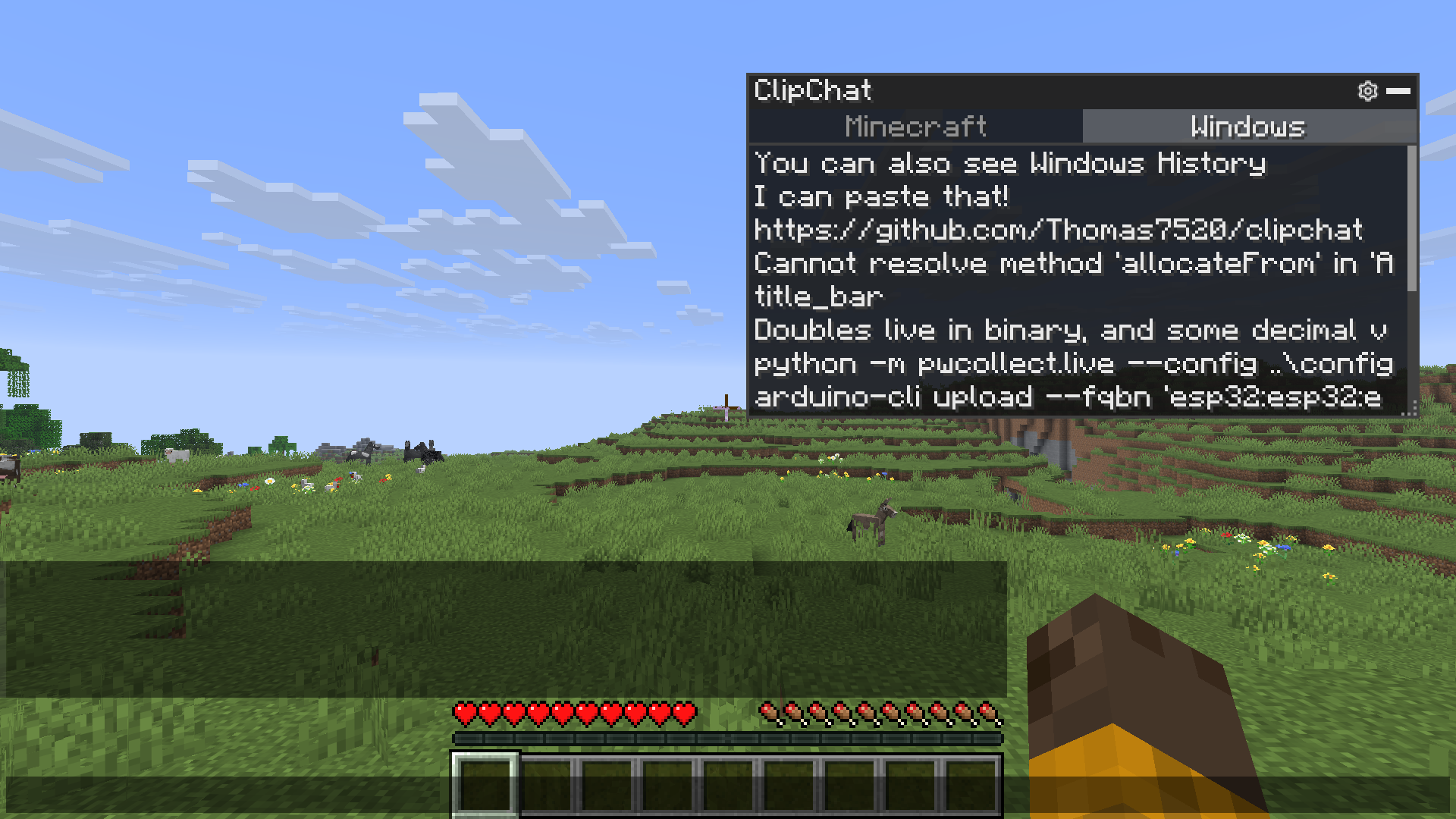
- Open the panel: open the in-game chat.
- Open settings: no key is assigned by default (Unbound). You can change it in the Controls settings.
Open the settings
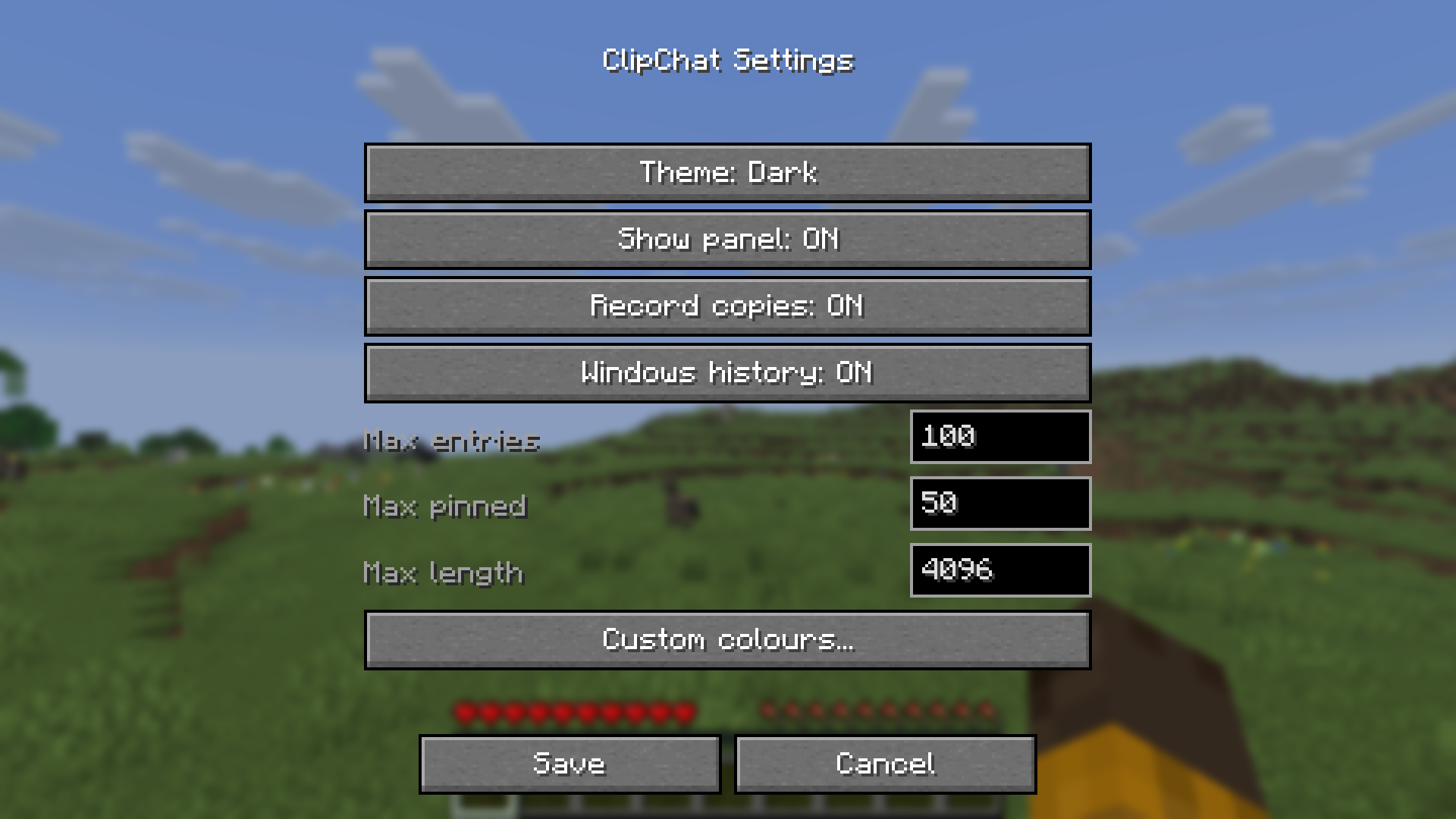
There are three ways to open ClipChat settings:
- Click the gear icon in the panel title bar.
- Use the /clipchat command.
- Open the mod settings through Mod Menu.
Choose a theme
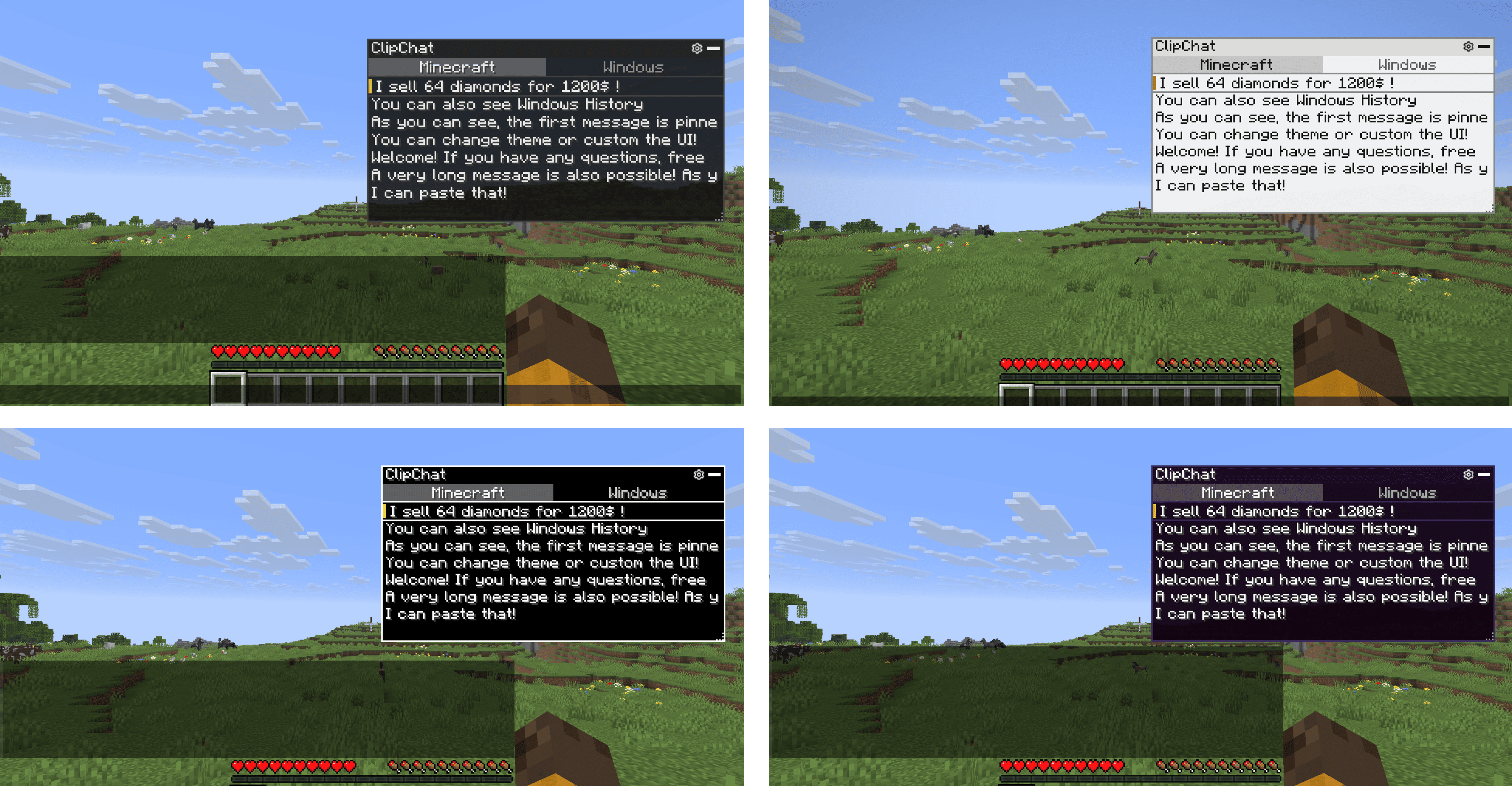
ClipChat has four themes: Dark, Light, High contrast, and Classic. You can also override each colour manually in the settings.
Panel controls
- Left click: insert the entry into chat.
- Right click: pin or unpin the entry.
- Ctrl + Up / Down: move through entries.
- Ctrl + Enter: insert the entry into chat.
- Ctrl + P: pin or unpin the entry.
- Ctrl + Delete: delete the entry.
- Ctrl + Left / Right: switch tabs.
Pinned entries stay at the top and are never removed to make room for new ones.
Customize the panel
You can move, resize, or collapse the panel. Its position is remembered between sessions.
Windows clipboard history
An optional Windows tab lets you browse the clipboard history maintained by Windows and insert an entry from it. This option is off by default.
Was this guide helpful?Find more tips in the help center.Explore the wiki